The Reboot Pattern: What It Tells You
Cameras do not reboot for fun. Each reboot is a deliberate response by the camera's hardware or firmware to a specific stimulus -- usually low voltage, a watchdog timeout, or a software fault. The reboot timing pattern reveals what the stimulus is.
- Reboots at the same time every day -- thermal effect or scheduled load (recording, IR activation, daily firmware task)
- Reboots when other cameras boot -- switch budget pressure during initial allocation
- Reboots only at night -- IR illuminator load draws beyond cable capacity
- Reboots randomly throughout the day -- voltage drop near the threshold, or switch budget oscillation
- Reboots only during PTZ movement -- motor inrush current causes voltage sag
- Reboots after a specific number of hours -- firmware memory leak or thermal accumulation
Note the pattern before chasing the cause. The pattern often points directly to the diagnosis.
The Five Most Common Causes
| Cause | Typical Pattern | Field Test | Fix |
|---|---|---|---|
| Voltage drop under load | Reboots during peak draw | Voltage at camera under full load | Re-terminate, larger cable |
| Budget shedding | Multiple cameras affected | Switch CLI allocation summary | Larger switch, redistribute |
| Class mismatch | Boots, runs briefly, dies | PoE tester class declaration | Reconfigure switch port |
| IR / heater / PTZ load | Reboots during specific events | Voltage with feature active | Higher class allocation |
| Firmware bug | Reboots on schedule, no power issue | Switch port log, no power events | Update or roll back firmware |
Cause 1: Voltage Drop Under Load
The most common cause. The cable run delivers acceptable voltage at idle but drops below the camera's brown-out threshold when the camera draws peak current. The camera detects under-voltage, reboots cleanly to protect itself, then comes back up at lower draw and operates fine until the next peak event.
How to test
Use a PoE tester at the camera end. Measure voltage with the camera operating at full feature set: video streaming at full frame rate, IR active, PTZ moving (if equipped). A camera that shows 48V idle and 38V under load has 10V of drop -- the load condition is causing the failure even though the idle voltage looked fine.
How to fix
- Re-terminate both ends of the run with fresh RJ45 connectors
- Replace patch cables with known-good factory units
- If on Cat5e, upgrade the run to Cat6 or Cat6A
- If on CCA, replace with solid copper
- If the run is over 80m for a Class 4 camera on Cat5e, shorten the run or upgrade cable category
Cause 2: Switch PoE Budget Shedding
The switch's total allocated PoE has exceeded the budget. The switch starts dropping ports to relieve the pressure. Cameras on dropped ports reboot when power returns. This often appears as multiple cameras rebooting simultaneously or within a short window of each other.
How to test
One CLI command on the switch: show power inline. The summary shows total budget, allocated power, and free budget. If allocated is at or above 100% of budget, shedding is likely. The per-port output shows which ports have been administratively or automatically de-powered -- those are the shed ports.
How to fix
- Add a midspan injector to offload one or two high-draw cameras from the switch
- Replace the switch with a larger-budget unit
- Redistribute cameras across two smaller switches
- Set port priorities so critical cameras stay powered when shedding starts
- For Class 0 cameras over-reserving budget, see if LLDP-MED PoE negotiation is available to release unused allocation
Cause 3: Class Mismatch
The camera requires a higher PoE class than the switch is configured to provide. The port boots the camera at a lower power level; the camera tries to draw more than allocated; the switch trips overcurrent protection; the camera reboots. This often appears as a classic "boots, runs for 30 seconds, dies, repeats" pattern.
How to test
Connect a PoE tester to the camera's port, declaring the camera's required class. If the switch declines to provide that class, the per-port configuration is wrong. Cross-check on the switch CLI: show power inline interface shows the configured maximum class for the port.
How to fix
Reconfigure the switch port to allow the higher class. On Cisco IOS: power inline auto max 30000 for Class 4. On other platforms, check the manufacturer documentation. Some switches require explicit configuration for 802.3bt classes 5-8 even when the hardware supports them.
Cause 4: Peak Load Events (IR, Heater, PTZ)
Cameras with built-in infrared illuminators, outdoor cameras with heaters, and PTZ cameras with motors all have peak power draw events that can dramatically exceed average draw. A PTZ camera at idle may draw 8W; the same camera moving the lens with active IR can draw 22W. The cable that delivered 8W comfortably cannot deliver 22W.
How to test
Use a PoE tester with continuous wattage display at the camera end. Trigger the peak-load feature: cover the lens to activate IR, command the PTZ to a new preset, activate the heater (if accessible). Watch the wattage and voltage as the load event happens. If voltage drops below threshold during the event, the cable cannot sustain peak draw.
How to fix
- If the camera is on an 802.3af port and needs 802.3at for peak load, upgrade the port allocation
- If the cable is the limit, upgrade to Cat6/6A or shorten the run
- Consider a camera model with lower peak power, or supplement with an external IR illuminator on its own power
- For outdoor cameras with seasonal heaters, verify the install during cold-weather peak heater load, not just at install time
Cause 5: Firmware Bugs
Sometimes the cable, switch, and power are all healthy and the camera still reboots. The cause: a firmware bug in the camera or the switch.
Camera firmware
Memory leaks, watchdog timeouts, and feature bugs cause cameras to spontaneously reboot. The pattern: scheduled reboots (every 24 hours, every week), reboots after specific events (motion alarm, NVR reconnection, time sync), or reboots that correlate with no environmental factor at all. Check the camera vendor's firmware release notes for known reboot bugs and update if a fix is available.
Switch firmware
PoE behavior changes can ship in switch firmware updates. A switch that delivered reliable PoE before an update may start shedding ports, mis-classifying devices, or exhibiting MPS timing problems after the update. Check the switch vendor's release notes for PoE-related changes and consider rolling back if reboots correlate with the update.
How to identify firmware as the cause
Power and cable measurements all look healthy. Switch logs show no PoE events around reboot times -- the link stays up but the camera reboots. The reboot pattern is regular and time-based rather than load-correlated. Replace the camera with a known-good unit on the same cable: if the new camera is stable, the original camera's firmware is the cause.
The Diagnostic Procedure
- Document the reboot pattern. Time of day, frequency, correlation with other events.
- Check the switch log. Are there PoE events (overcurrent, shed, class change) around reboot times?
- Check switch budget. Is total allocation above 85%? If so, shedding is plausible.
- Check per-port class config. Does the port allow the camera's required class?
- Measure voltage at the camera under full load. Does it drop below threshold during peak draw?
- Run wiremap on the cable. Are all 8 conductors intact?
- Check cable type and length. Cat5e? CCA? Over 80 meters?
- Replace the camera with a known-good unit. If still rebooting, infrastructure is the issue.
- Update firmware on camera and switch. Roll back if reboots correlate with a recent update.
Most camera reboot problems are diagnosed by step 5 (voltage under load) or step 7 (cable type and length). The remaining steps catch the harder cases.
Tools for Camera Reboot Diagnosis
PoE Tester with Continuous Display
Shows wattage and voltage live rather than as a single snapshot, so you can watch the values move as the camera reaches peak load. A tester that reads once and holds will miss the moment that matters.
Cable Wiremap and Length
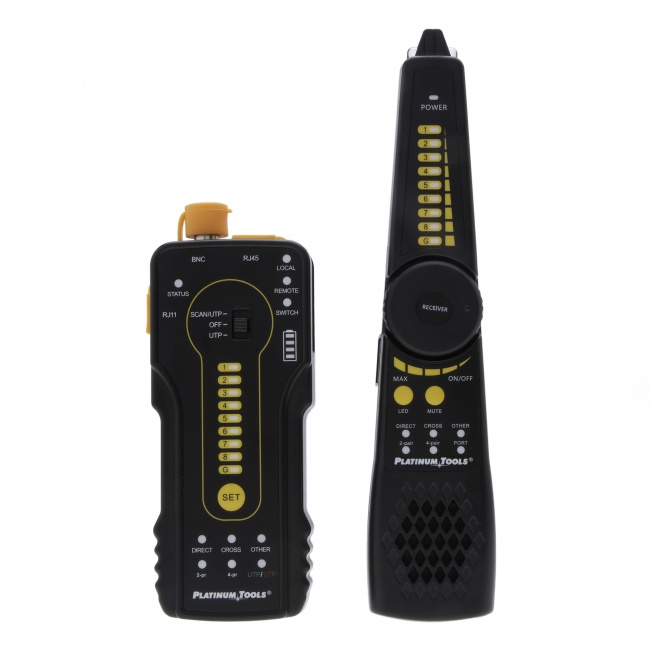
The VDV MapMaster 3.0 verifies wiremap and measures cable length -- catches the most common physical-layer causes of reboots.
Network Performance Tester
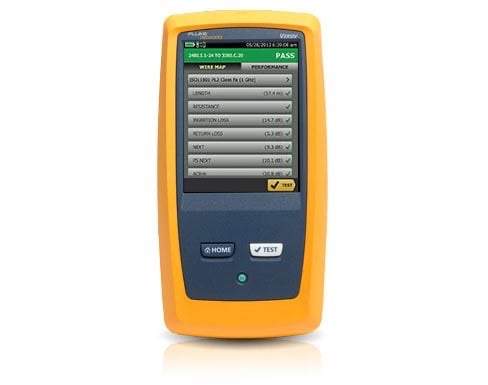
Reads link speed and cable performance in the same pass, which is what you want when data and power are both suspect and you cannot tell which is driving the reboot. CableTestShop does not list a qualifier; a throughput result on a specific job is a rent-or-subcontract step.
For a related buying guide, see the best PoE testers for 2026. For the underlying physics, see PoE voltage drop and cable length.
Frequently Asked Questions
Why does my PoE camera keep rebooting?
Five common causes: voltage drop under load, switch budget shedding, class mismatch, peak load events (IR, heater, PTZ), and firmware bugs. A PoE tester at the camera end measures voltage and wattage under load to isolate most causes in minutes.
Why does my PoE camera reboot at night but work during the day?
The IR illuminator load signature. Built-in infrared LEDs activate in low light, doubling the camera's power draw. A cable that delivered enough wattage during the day cannot sustain the higher current at night. Verify with a PoE tester showing voltage with IR active.
Can a switch firmware update cause cameras to start rebooting?
Yes. Firmware updates can change PoE budget allocation, class detection, MPS timing, port priority defaults, and LLDP-MED behavior. Check vendor release notes for PoE-related changes and consider rolling back if reboots correlate with the update.
How do I know if a camera reboot is power or network related?
Power-related reboots take the link down at the switch. Network-related issues affect video without taking the link down. Check the switch port log: link down events around reboot times indicate power; link stays up indicates network or camera firmware.
What is the safe minimum voltage for a PoE camera?
37V at the device for 802.3af, 42.5V for 802.3at, and roughly 41V for 802.3bt Type 3. Below these thresholds, the PoE input cannot sustain operation. Measure voltage at the camera under full load -- the worst-case voltage is what matters.
Stop the Camera Reboots
We do not sell a PoE tester. What we do sell tests the cable underneath the power: wiremap, continuity, length, and distance to fault. Source the PoE tester from a supplier who stocks one, and prove the cable first, because a split pair or a bad termination will fail PoE for a reason no PoE tester will ever name.